
Shownamer is a powerful yet lightweight command-line tool written in Python that automatically renames your TV show and movie files. It fetches accurate episode titles, release years, and other metadata from online sources like TVmaze and OMDb, transforming your messy filenames into a clean, consistent, and organized format.
Fetches details and metadata from TVmaze and OMDb API. No API Keys of further tweaking will be required to rename and handle TV Show files. But, OMDb Will ask the user for an API Key when trying to use shownamer with movie files.
The Philosophy
The philosophy behind Shownamer is simplicity. It's designed to work "out of the box" with minimal configuration. While movie renaming requires a free API key from OMDb, the tool is designed to be as straightforward as possible. It does one thing and does it well: renaming your media files to make your collection look neat and tidy.
Installation
Installing Shownamer is as simple as running a single command. All you need is Python 3.7 or higher.
pip install shownamer # pipx would work better on arch etc.That's it! You're ready to start renaming your files.
Usage
You can use Shownamer by simply typing shownamer in your terminal. By default, it will scan the current directory for TV show files and rename them.
To see a list of all available options, you can use the --help flag:
shownamer --helpArguments
| Flag | Description |
|---|---|
--dir | Specifies the directory where your media files are located. Defaults to the current working directory. |
-m, --movie | Look for movie files instead of TV shows. |
--api-key | Your OMDb API key. Overrides the stored API key. (only required for renaming movie files) |
--ext | Specifies the file extensions to consider. Defaults to mkv, mp4, avi, mov, flv. |
--dry-run | See what changes will be made without actually renaming any files. |
--verbose | Show more details about what is happening behind the scenes. |
--name | List all the TV show names detected in the directory. Use with --movie to list movie details. |
--format | Define your own custom filename format. |
--char | Replace illegal characters in filenames with a specific character (_, -, .). |
--title | Embed media title into file metadata after renaming. Compatible with --format and --movie. |
-h, --help | Prints the help message. |
--version | Print the current version of Shownamer and exit. |
Examples
Rename TV Show Episodes
# Rename all supported video files in the current directory
shownamer

# Specify a directory
shownamer --dir "/path/to/your/shows"

# Only consider .mkv and .mp4 files
shownamer --ext mkv mp4
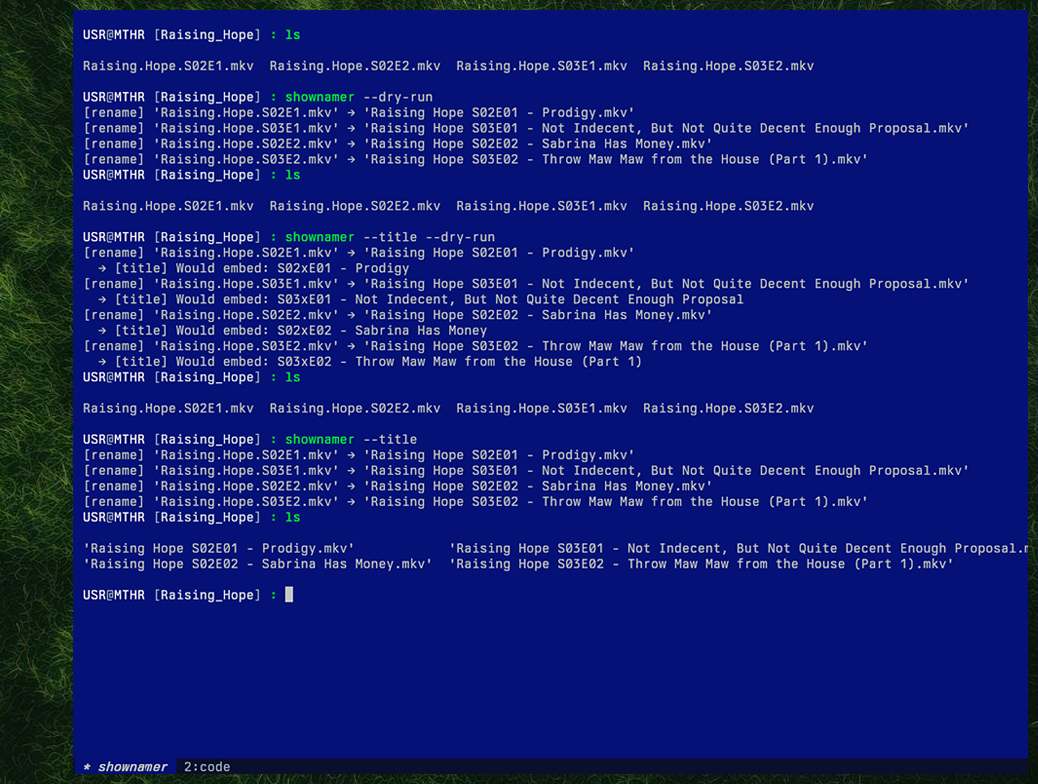
Rename TV Show Files
Rename Movie Files
The first time you run the movie command, you will be prompted for a free OMDb API key. This key will be stored safety until the key is replaced by a new one. Get your API Key here omdbapi.com/apikey.aspx
# Rename movie files in the current directory
shownamer --movie

# Provide an API key directly
shownamer --movie --api-key YOUR_API_KEY
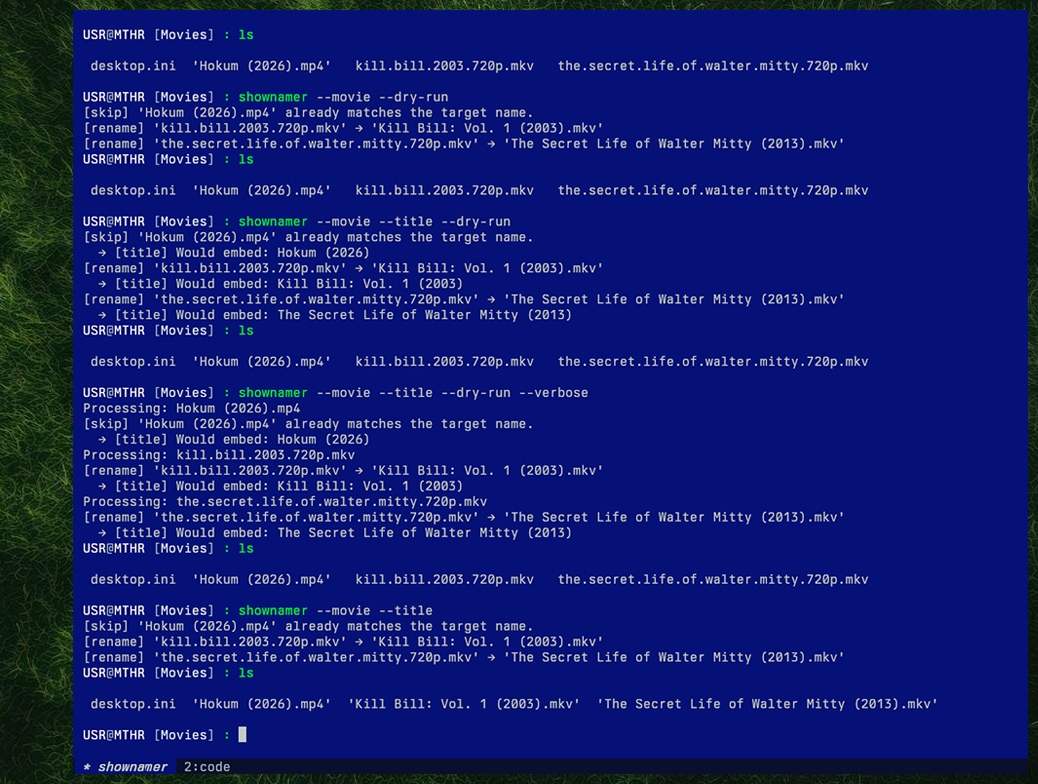
Rename Movie Files
Dry Run and Verbose Mode
# Preview the changes without actually renaming any files
shownamer --dry-run

# See detailed logs of what the tool is doing
shownamer --verbose
List Detected Media
# List all detected TV shows in the current directory
shownamer --name

# List all detected movies
shownamer --name --movie
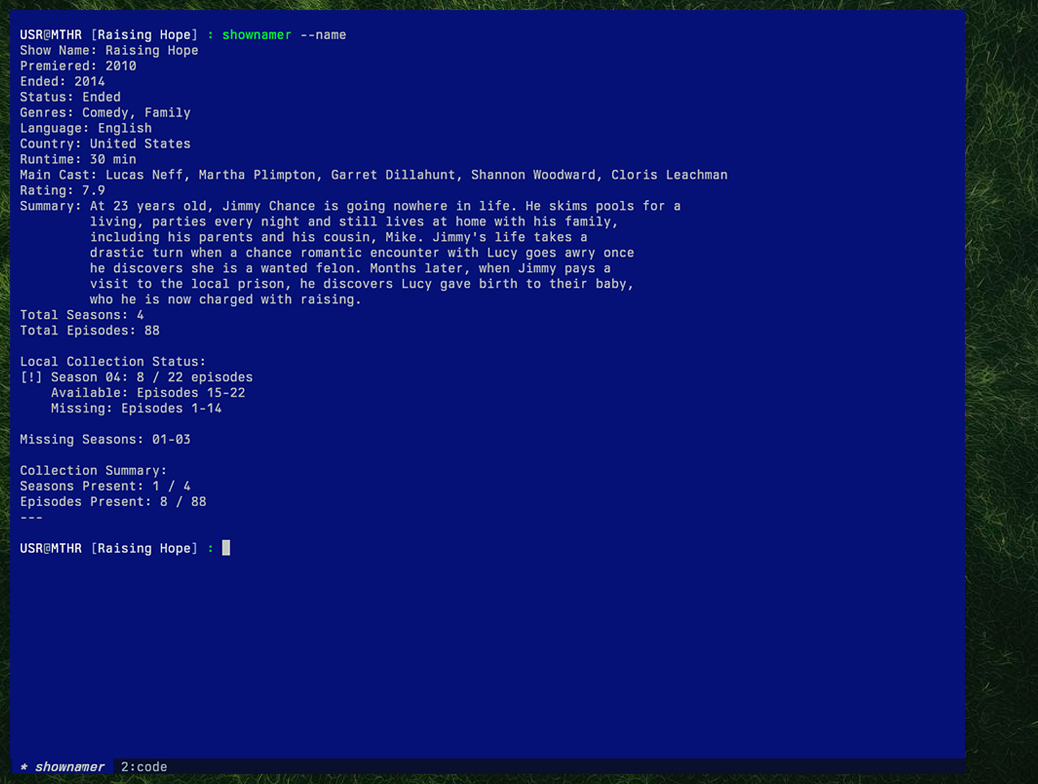
Display TV Show Metadata in Current Folder
For TV shows, it prints: Show Name, Premiered, Ended, Status, Genres, Language, Country, Runtime, Main Cast, Rating, Summary, Total Seasons, Total Episodes, Local Collection Status (per season, with available/missing episode breakdown), Missing Seasons, and a Collection Summary.
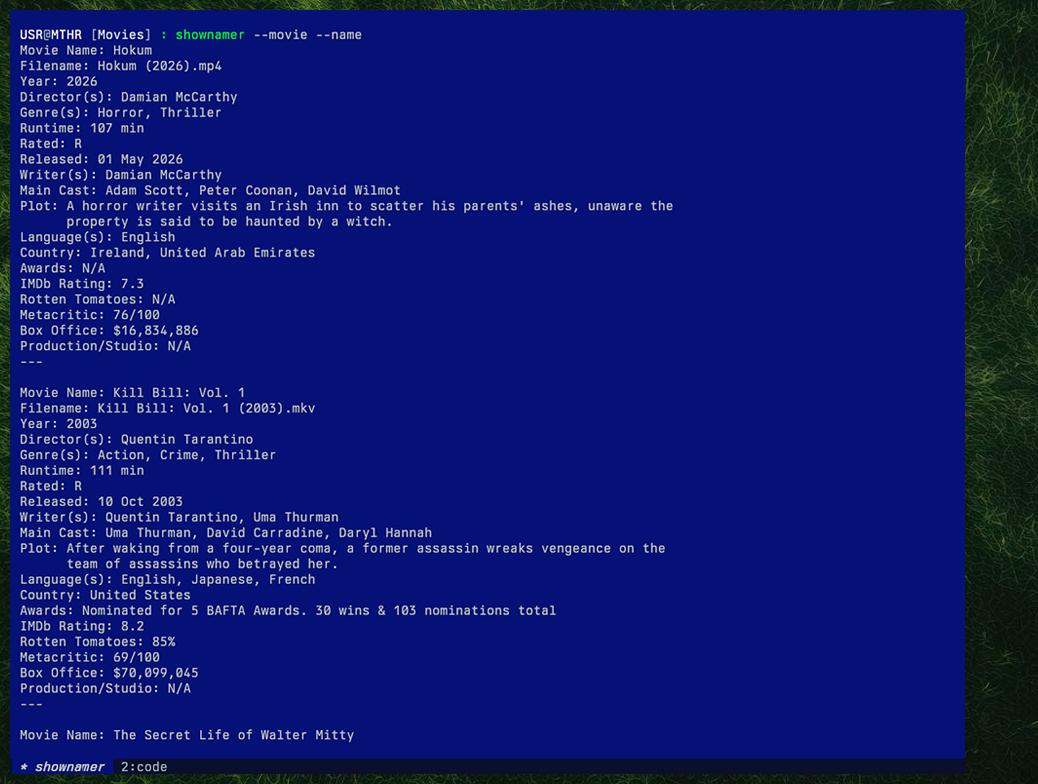
Display Movie File Metadata in Current Folder
For movies, it prints: Movie Name, Filename, Year, Director(s), Genre(s), Runtime, Rated, Released, Writer(s), Main Cast, Plot, Language(s), Country, Awards, IMDb Rating, Rotten Tomatoes, Metacritic, Box Office.
Custom Filename Formatting
You can use the --format argument to define your own filename structure.
Available Placeholders:
- For TV Shows:
{name},{season},{episode},{title},{year} - For Movies:
{name},{year},{director},{genre}
Formatting Examples:
# Default TV show format: {name} S{season:02}E{episode:02} - {title}
# Output: The Office S01E01 - Pilot.mkv

# Custom TV show format
shownamer --format "{name} ({year}) - {season}x{episode} - {title}"

# Default movie format: {name} ({year})
# Output: The Green Knight (2021).mkv

# Custom movie format
shownamer --movie --format "{director} - {name} ({year}) [{genre}]"
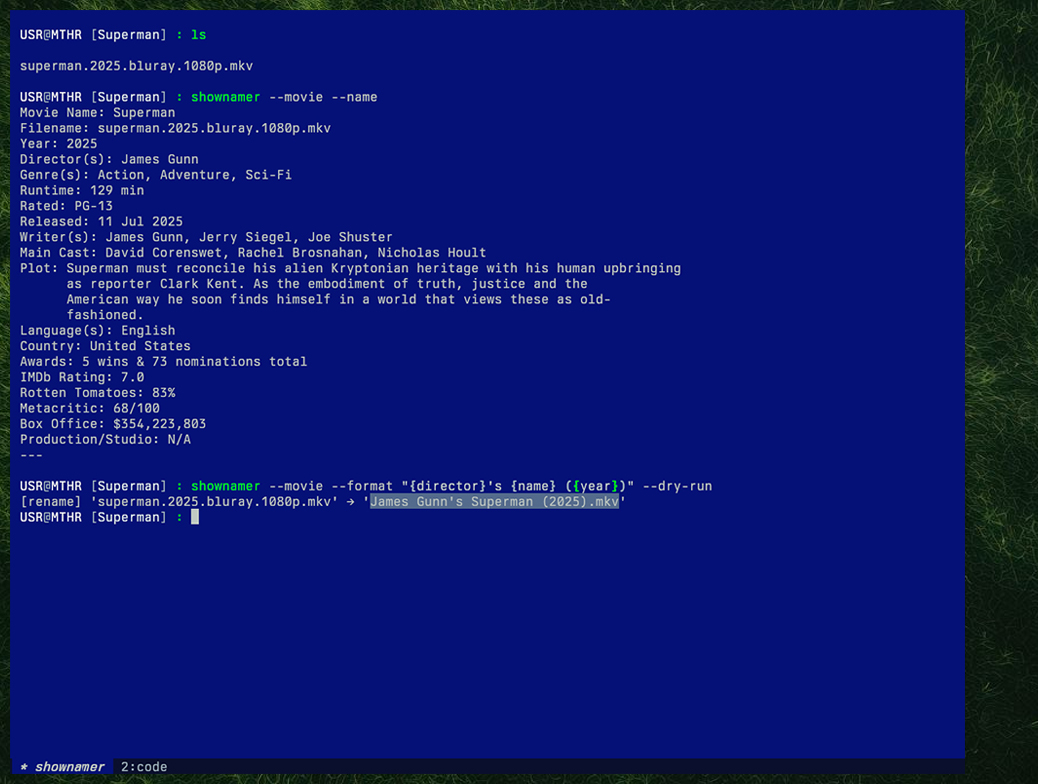
Use Custom Strings as Names and Titles
Title Embedding
Use the --title flag to write a title string directly into the file's metadata after renaming.
# Embed title metadata after renaming TV show files
shownamer --title

# Embed title metadata after renaming movie files
shownamer --movie --title

# Works alongside --format
shownamer --title --format "{name} ({year}) - {season}x{episode} - {title}"

# Preview what would be embedded without touching files
shownamer --title --dry-run
The title string embedded into the metadata follows this format:
| Mode | Embedded Title Format |
|---|---|
| Show | S{season:02}xE{episode:02} - {title} |
| Movie | {name} ({year}) |
When --format is used, the formatted filename string is embedded as-is instead of the defaults above.
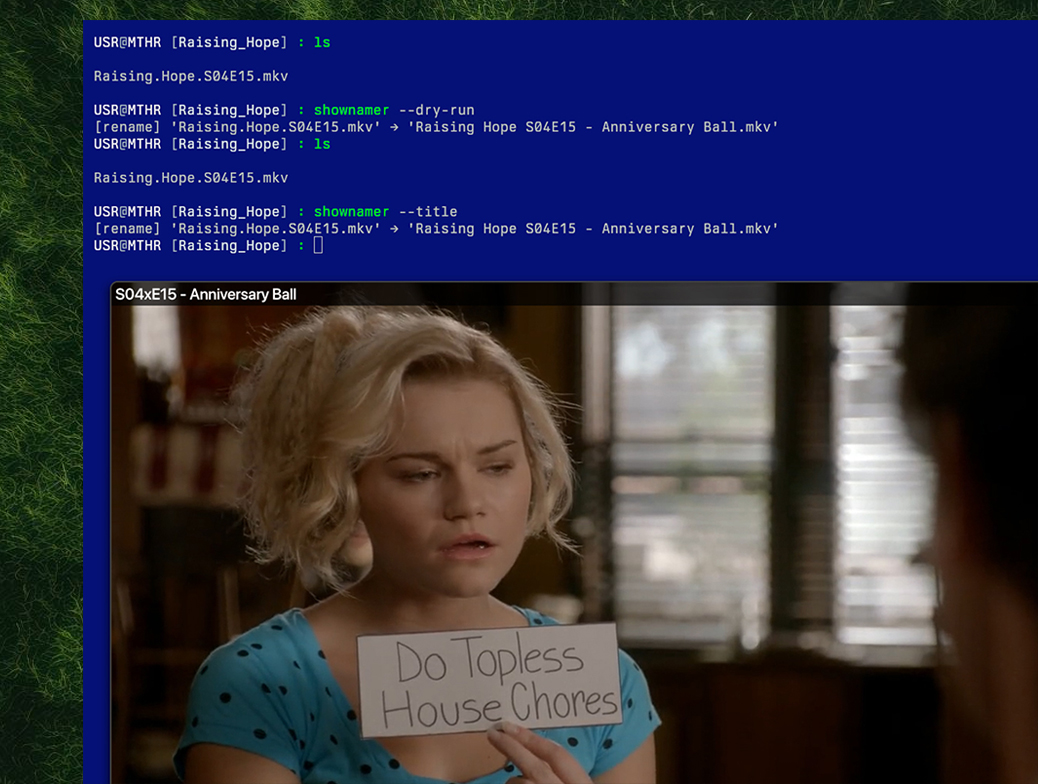
Change Title Metadata of Movie Files
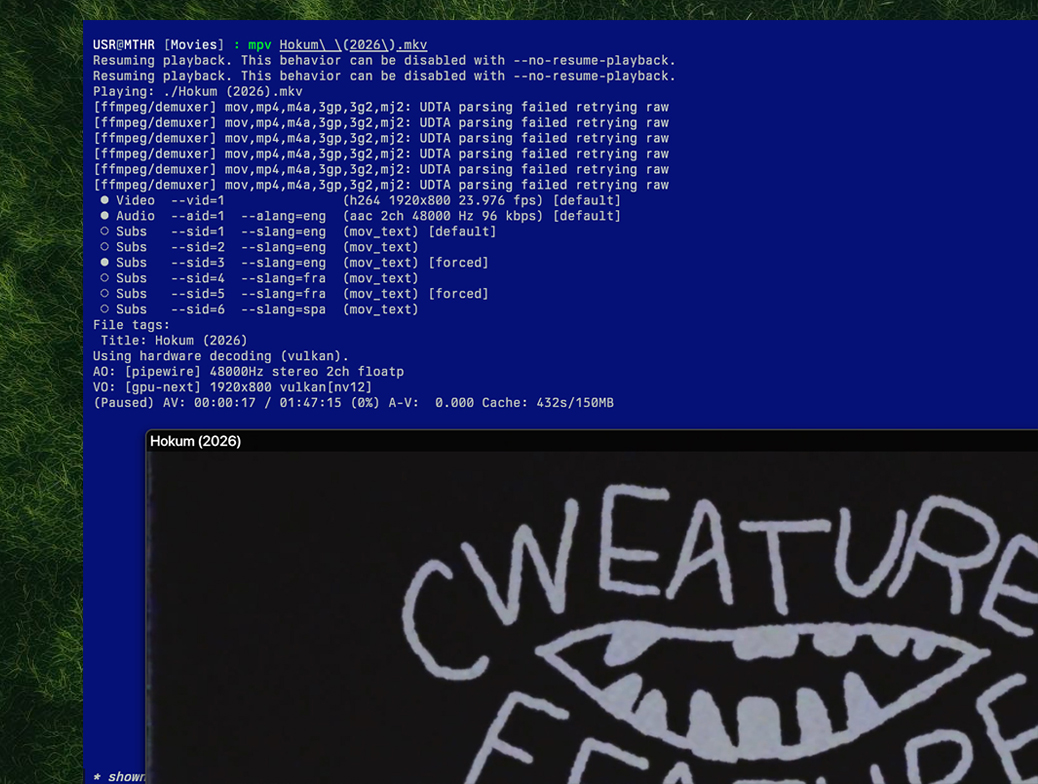
Change Title Metadata of Movie Files
Dependencies: For
.mp4,.m4v, and.movfiles, title embedding usesmutagen, which is installed automatically with shownamer. For all other formats (.mkv,.avi, etc.), it falls back toffmpeg, which must be available in yourPATHseparately.
Contributions
Pull requests, suggestions, and issues are welcome! Let's make it smarter and broader (e.g., subtitle renaming, fuzzy matching, show aliases, etc.).